
| view 👀:132 |
🙍 oneddl |
redaktor: Baturi | Rating👍:
Autodesk AutoCAD Electrical 2027 with LPs & Offline Helps Win x64

Free Download Autodesk AutoCAD Electrical 2027 with LPs & Offline Helps | 9.6 Gb
Languages Supported: English, Français, Deutsch, Italiano,
日本語, 한국어, Русский, Español, 简体中文, 繁體中文
Autodeskhas released AutoCAD Electrical 2027 Toolset is specially developed for electrical schematics and wiring designs. The software includes extensive symbol libraries and automatic numbering. Perfect for electrical engineers, panel builders and engineers.
What's New in AutoCAD Electrical 2027 Toolset
ECLASS Data Import Utility (What's New in 2027)
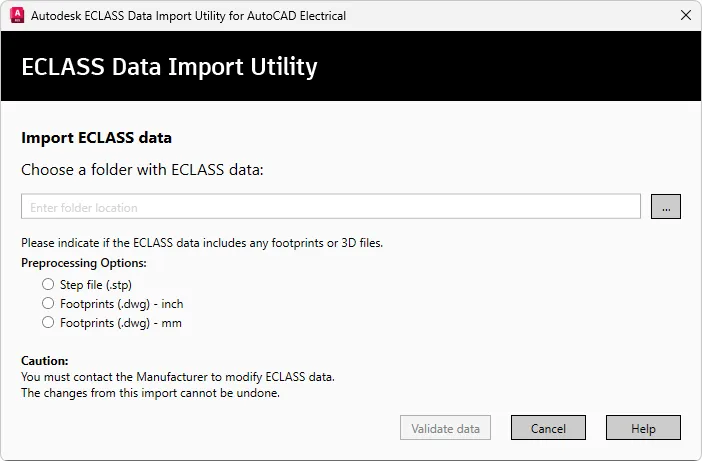
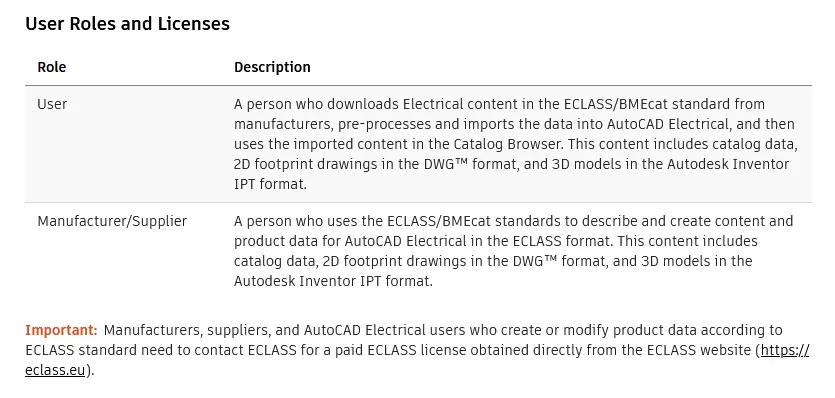
Many manufacturers' websites or product catalogs offer ECLASS-compliant product specifications. These specifications can include technical details, dimensions, certifications, standards, product descriptions, part numbers, and links to manufacturer documentation. AutoCAD Electrical uses ECLASS to streamline and standardize the download and integration of manufacturer data. This approach improves the efficiency, accuracy, and interoperability of the design process. The ECLASS Data Import Utility in AutoCAD Electrical imports XML files for product specifications, DWG files for 2D footprints, and IPT files for 3D representations. The utility checks the specified files and, if they pass validation, imports the data into the database. It also generates a log file to record any warnings or errors and produces a report detailing the imported items.
![aefea413936b95e...]()
![0e4b7a85e976157...]()
Close
Export Terminal Strips to Manufacturer Applications (What's New in 2027)
You can export terminal strips from the AutoCAD Electrical toolset and import them into Wago Smart Designer, Phoenix Contact CLIPX Engineer, or Weidmuller Configurator applications. These manufacturer tools allow you to design, manipulate, and validate terminal strips.
![801a1b463b18bc5...]()
During the export process, the AutoCAD Electrical toolset extracts data from the selected terminal strips and creates an XML file compatible with Wago Smart Designer or Phoenix Contact CLIPX Engineer, or CAEDEX file compatible with Weidmuller Configurator. You then import this XML file into the respective manufacturer tool.
The exported terminal strip data includes:
- Catalog numbers
- Terminal numbers
- Installation codes
- Location codes
- Tags
- Spares
- Accessories
Terminal Strip Table (What's New in 2027)
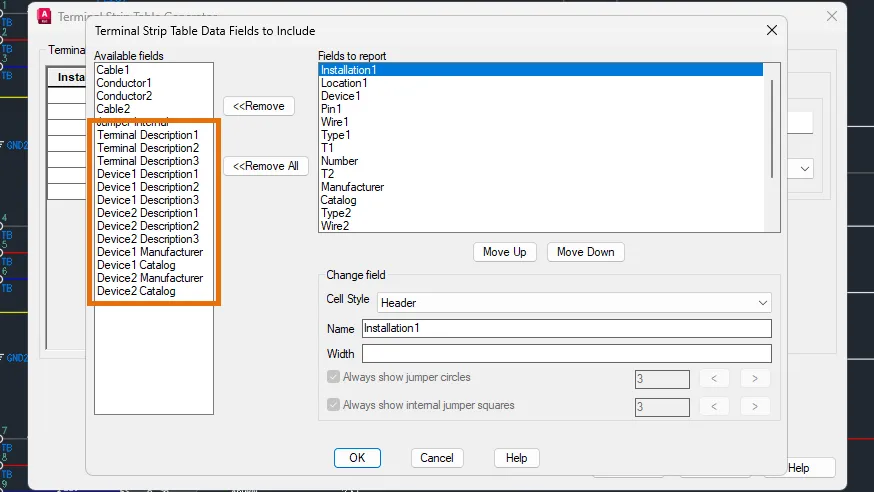
Expand the data in your tabular terminal strip by adding more fields using the Terminal Strip Editor or the Terminal Table Generator.
![125afac8e65aa53...]()
Terminal Plan Report Enhancements (What's New in 2027)
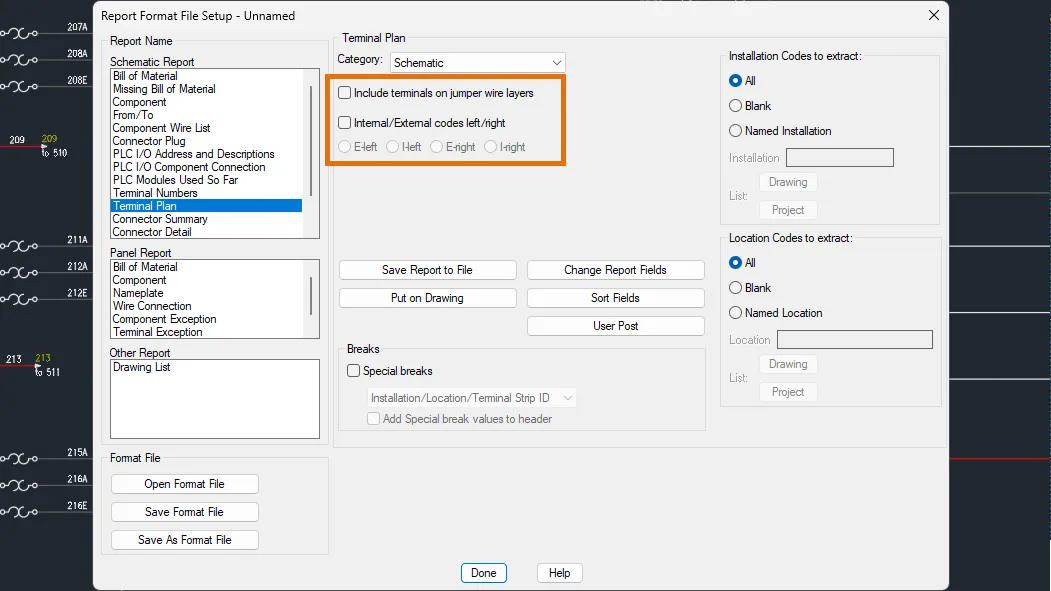
You now have the option to include terminals on jumper wire layers and to display internal or external codes on either the left or right side when generating Terminal Plan reports. These options are available in the Report Format File Setup dialog box, providing you more control over report formatting.
![f94f940ad12fae5...]()
Geometry Cleanup (What's New in 2027)
Geometry Cleanup scans drawings to fix common geometry errors. Geometry Cleanup scans drawings to find common geometry errors including gaps, overshoots, undershoots, and misaligned angles. It highlights errors directly in the drawing window with visual markers. Additionally, Geometry Cleanup offers several options for each error, allowing you to choose the best fix. You can also choose to ignore suggestions and keep the geometry as designed when needed. Geometry Cleanup is fast, visual, and precise. To use Geometry Cleanup, start by opening the palette. You can do this by typing GEOMETRYCLEANUPOPEN at the Command prompt, or from the ribbon, click Manage tab > Cleanup panel > Geometry Cleanup.
![8d2341a6eb54c2a...]()
Next, select the objects you want to scan. Customize the settings by selecting the error types and setting the tolerances from the Geometry Cleanup Settings dialog box. You can also export tolerance settings and import template files for consistency across drawing or project types.
![1d01b85a846cc42...]()
Finally, review and fix the found errors by clicking through them. Hovering over the visual marker will display fix options, and hovering over a fix option will allow you to preview the fix in real time on the canvas. Click on a fix option to apply it to the drawing. Use "Keep as designed" for intentional cases.
![fbe7987c8e8af2d...]()
Subtle geometry errors can disrupt your design workflow and impact your productivity. Improving drawing accuracy is one of the key benefits of this tool. It saves time by streamlining the cleanup process while giving you control over what gets fixed.
Autodesk Assistant (What's New in 2027)
Autodesk Assistant now offers AI-enhanced chat and prompt-driven workflows. Autodesk Assistant includes the following enhancements:
- Ability to check standards of the current drawing against a standards file
- Selection based on natural language prompt
- Ability to query drawing for information, such as layers list, block usage, etc.
- Prompt library and chat history
Note: These newest Autodesk Assistant enhancements are currently in Tech Preview and will continue to improve over time. Currently, its results may not be accurate.
![68a90a5b94a4ea7...]()
Forma Data Management Essentials (What's New in 2027)
Forma Data Management Essentials streamlines collaborating with others on your projects. Forma Data Management (formerly Autodesk Docs) helps you organize project files and folders for every stage of your work. Use it to share drawing files, publish sheets, review designs, create transmittals, and track issues. To use Forma Data Management with AutoCAD, make sure to install the latest version of Desktop Connector. To do this, see Install Desktop Connector. This release includes improvements that make it easier than ever to get started with Forma Data Management:
- Forma Data Management Essentials
- Ability to view unsynced projects
- Learning content panel
- Enhanced AutoCAD features in Forma Data Management
Forma Data Management Essentials
AutoCAD and Civil 3D subscriptions now include Forma Data Management Essentials. It provides a central source for project information, helping your team stay connected.
Key features are:
- Online drawing file collaboration
- Permission-controlled access
- File versioning
- File sharing
- File review tools
View unsynced projects
You can now see all projects of which you are a member, including those not yet synced. To access files from an unsynced project, use Desktop Connector to sync them to your computer.
![a13bade50d60317...]()
Learning content panel
In the Autodesk Projects tab, you'll find a panel with learning resources for Forma Data Management. It includes details about AutoCAD features now enhanced for working with drawings stored in Forma Data Management.
Connected References (What's New in 2027)
Connected References improves the workflow for updating the paths of missing external drawing references (xrefs). When working with drawings that contain references, the new Missing toggle allows you to switch to the Missing References view in the File References pane. This view exclusively shows missing external drawing reference (xref) files.
![99f1359d905d553...]()
From the Missing References view, you can perform the following tasks on selected missing references:
- Detach references that are no longer needed
- Update the paths of references by browsing and specifying a new path
- Resolve the paths of references based on suggested paths (applies to drawings opened from an Autodesk project only)
Suggested Path for References
Normally, when a referenced file is renamed or moved, any drawing that depends on it can no longer locate it because its path has changed. As a result, you must update the path for each missing reference to load it properly into AutoCAD. With Connected References and referenced drawing (xref) files stored on Forma Data Management, the External References palette automatically attempts to locate missing reference files that have been renamed or moved. When a missing reference file is found, a suggested path is displayed, which you can accept to avoid manually updating each missing reference.
Changed Commands
EXTERNALREFERENCES - Opens the External References palette.
Connected Support Files: Tool Palettes (What's New in 2027)
Tool palette and authoring palette files can be shared with others working on the same Autodesk project stored on Forma Data Management. When configuring an Autodesk project on Forma Data Management, you can specify the locations for the project's tool palette and authoring palette files. For more information on setting up an Autodesk project for use with Connected Support Files, see To Set Up an Autodesk Project to Use Connected Support Files.
Note: Connected Support Files are now available in Forma Data Management and ACC Library.
If you are new to tool palettes and authoring palettes, the following provides a brief description of each:
- Tool palettes: Provide access to project-related blocks, hatch patterns, custom commands, and many other tools that help enforce CAD standards. When loaded, these palettes appear on the Tool Palettes window.
- Authoring palettes: Provide tools for creating and modifying dynamic blocks. When loaded, these palettes appear on the Block Authoring Palettes window within the Block Editor.
Configure Tool Palettes and Authoring Palettes for an Autodesk Project
After Connected Support Files have been set up for an Autodesk project, follow these steps to configure tool palettes and authoring palettes for the project:
Important: Only project members with Project Administrator access can configure Connected Support Files.
1. Upload your project-related tool palette (ATC) files to the Autodesk project.
2. For information on uploading files to an Autodesk project, see the Autodesk Desktop Connector help documentation.
3. In AutoCAD, open a drawing from the Autodesk project of which you want to configure tool palettes and authoring palettes.
4. In the drawing area, right-click and choose Options.
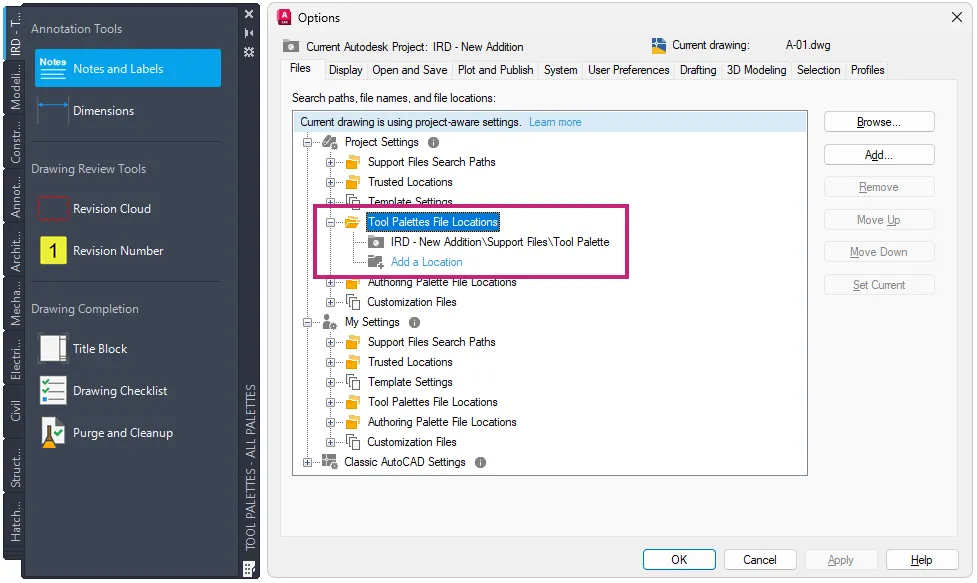
5. In the Options dialog box, click the Files tab and expand the Project Settings node.
6. Expand Tool Palettes File Locations and then click Add a Location under the node.
7. In the Browse for Folder dialog box, browse to and select the folder containing the uploaded tool palette files, and then click Open.
8. If you uploaded authoring palettes, repeat steps 5 and 6 for the Authoring Palette File Locations setting.
9. Click OK to save the changes.
![078710377efe267...]()
Close
Display and Use Tool Palettes from an Autodesk Project
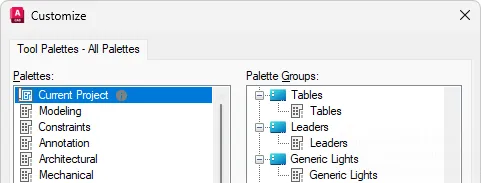
A special tool palette named Current Project is available on the Tool Palettes window and the Customize dialog box. This palette represents the tool palettes loaded from an Autodesk project on Forma Data Management when the project is configured to use Connected Support Files. Use this palette to access project-related tools or to add project-related tool palettes to a tool palette group.
Note: Tool palettes loaded from an Autodesk project are available only when a drawing from that project is open.
![34909cab44fb549...]()
Changed Commands
BAUTHORPALETTE - Opens the Block Authoring Palettes window in the Block Editor.
CUSTOMIZE - Customizes tool palettes and tool palette groups.
OPTIONS - Customizes the program settings.
TOOLPALETTES - Opens the Tool Palettes window.
Connected Support Files: Partial Customization (CUIx) Files (What's New in 2027)
Custom user interface (UI) elements can be shared with others and loaded into the AutoCAD desktop app when working on a drawing opened from an Autodesk project on Forma Data Management. When configuring an Autodesk project on Forma Data Management, you can specify which partial customization (CUIx) files that contain custom tools to be automatically loaded when a drawing from that project is opened. As you switch between drawings, any configured CUIx files for an Autodesk project are automatically loaded when their associated drawing is current, and unloaded when a different drawing not associated with that Autodesk project becomes current. For more information on setting up an Autodesk project for use with Connected Support Files, see To Set Up an Autodesk Project to Use Connected Support Files.
Note: Connected Support Files are now available in Forma Data Management and ACC Library.
If you are new to partial customization (CUIx) files, the following resources provide helpful introductions:
- Customization (CUIx) Files
- Customize User Interface (CUI) Editor
- Customizing Ribbon Tabs
- Customizing Ribbon Panels
Creating a Partial CUIx File
Customization (CUIx) files store the definitions of custom command macros and user interface (UI) elements. These UI elements can include ribbon tabs, ribbon panels, toolbars, and more. Before you create custom command macros or UI elements, you must first create a CUIx file. Follow these steps to create a partial CUIx file that can be loaded with other CUIx files:
- Click Manage tab Customization panel User Interface.
- In the Customize User Interface (CUI) Editor, click the Transfer tab.
- In the right pane, click Create a New Customization File.
- In the Save As dialog box, browse to the location where you want to save the new CUIx file.
- In the File Name text box, enter a File Name and click Save.
After creating the CUIx file, you must load it into the Customize User Interface (CUI) Editor to define the custom command macros and UI elements you want to make available when a drawing file from an Autodesk project is opened.
Loading and Editing a Partial CUIx File
Follow these steps to load and edit a partial CUIx file in the CUI Editor:
- In the Customize User Interface (CUI) Editor, click the Customize tab.
- In the Customizations In pane, click Load Partial Customization File.
- In the Open dialog box, browse to and select the CUIx file to load and click Open.
- In the Customizations In pane, click the Loaded CUI file drop-down list and select All Customization Files.
- Scroll down and expand the Partial Customization Files node.
- Expand the node for the CUIx file that you loaded in Step 3.
- Create new command macros in the Command List pane and add new UI elements that reference your custom command macros under the appropriate nodes.
- For information, see About Command Customization and About User Interface Elements.
- Click Apply to save the changes.
- After adding the new UI elements and saving the changes, right-click the CUIx file under Partial Customization Files and choose Unload.
- Click OK to close the CUI Editor.
Adding a Partial Customization (CUIx) File to an Autodesk Project's Settings
After setting up Connected Support Files for an Autodesk project and creating a CUIx file, follow these steps to configure your partial customization (CUIx) files for a project:
Important: Only project members with Project Administrator access can configure Connected Support Files.
- Upload your project-related partial customization (CUIx) files to the Autodesk project.
- In AutoCAD, open a drawing from the Autodesk project of which you want to configure tool palettes and authoring palettes.
- In the drawing area, right-click and choose Options.
- In the Options dialog box, click the Files tab and expand the Project Settings node.
- Expand Customization Files Partial CUI Files (Auto Load) and then click Add a Location under the node.
- In the Browse for Folder dialog box, browse to and select the CUIx file you want to load when a drawing from the Autodesk project is opened and set current. Then click Open.
- Note: When selecting a CUIx file to load with the Autodesk project, make sure to not select the product's main customization file.
- If you uploaded multiple CUIx files, repeat steps 5 and 6 for each file.
- Click OK to save the changes.
![c29f6288f58dcd0...]()
Changed Commands
CUI - Manages the customized user interface elements in the product.
OPTIONS - Customizes the program settings.
Quality improvements
Cable Conductor List:
- The cable conductor list now supports lowercase characters.
- The cable conductor list correctly loads for child cable markers located on a different sheet from the parent, even when the TAG contains lowercase letters.
Catalogs:
- Spreadsheet export and import now handle multiple catalog information for panel terminals as expected.
- The COUNT field across multiple catalogs for NO/NC contacts is now evaluated before triggering the 'Too many contact references' alert.
Reports:User posts now process the data and display according to the SET files as expected.
Panels:Multi-assembly footprint insertion using the panel schematic list explodes all assemblies correctly.
Wire Number:
- The wire number format now supports lowercase characters.
- Improved wire numbering accuracy and consistency for circuits with jumpered terminals during drawing-wide and project-wide updates.
Terminal Strip Editor:Default values for custom attributes are now correctly imported on Terminal footprints inserted through the Terminal Strip Editor.
PDF Description:All letters are Descriptionted to correct thickness when the text style font is set to ROMANS.SHX.
Additional enhancements and changes
Projects and Reports:Improvements were made to reduce the amount of time it takes to open/rebuild projects and generate reports.
Layout Tab Switching Performance:Improvements were made to reduce the amount of time it takes to switch layout tabs.
3D Graphics System Enhancements:The 3D graphics system (GSF), controlled by the FASTSHADEDMODE system variable, now provides a more stable and efficient experience. These updates improve visual fidelity by better supporting large coordinates, occluded edges, materials, lights, textures, shadows, sky, and backgrounds. Additionally, the Realistic (Fast) visual style is now on by default.
Removal of Support for AutoCAD Web & Mobile:The Open From Web & Mobile (OPENFROMWEBMOBILE) and Save To Web & Mobile (SAVETOWEBMOBILE) features have been removed from this release. If you previously saved your drawing files to AutoCAD Web & Mobile, it's recommended to utilize Forma Data Management to store and access drawing files anywhere.
Removal of Shared Views:The Shared Views feature has been removed from this release. If you previously used Shared Views, it's recommended to utilize Forma Data Management to store and share drawing files with others.
Push to Forma Data Management Replaces Push to Autodesk Docs:The Push to Autodesk Docs feature has been updated to Push to Forma Data Management. New commands and system variables were introduced to display and close the Push to Forma Data Management palette.
Removal of Support for the MrSID Image Format:Image files saved in the MrSid format can no longer be attached to a drawing file. MrSID images will need to be saved to a supported file format and reattached.
Removal of Support to Create a PostScript File:The PSOUT command has been removed in this release and the EXPORT command no longer supports the ability to export to the format. If you need to create a PostScript file from a drawing, configure a PC3 file according to the output needed.
![427d7d4e8176803...]()
AutoCAD Electricalsoftware contains all the functionality of AutoCAD, plus a comprehensive set of tools for automating control engineering tasks, such as building circuits, numbering wires, and creating bills of material. It includes real-time error checking, and enables electrical and mechanical teams to collaborate on digital prototypes built with Autodesk Inventor software. It offers control engineers a competitive edge by helping save hours of effort, so they can spend more time innovating.
AutoCAD Electrical Toolset
We focus on building intelligent ladder diagrams and panel layouts and demonstrate how to leverage this intelligence. This webinar provides an overview of AutoCAD Electrical (ACADE) utilities designed to allow the end-user to quickly build and manage an electrical controls drawing set.
Autodeskhelps people imagine, design and create a better world. Everyone-from design professionals, engineers and architects to digital artists, students and hobbyists-uses Autodesk software to unlock their creativity and solve important challenges.
Owner:Autodesk Inc.
Product Name:AutoCAD Electrical Toolset
Version:2027.0 with LPs & Offline Help
Supported Architectures:x64
Website Home Page :
Languages Supported:multilanguage
System Requirements:Windows *
Size:9.6 Gb
![_6b0c05df05e648...]()
ECLASS Data Import Utility (What's New in 2027)
Many manufacturers' websites or product catalogs offer ECLASS-compliant product specifications. These specifications can include technical details, dimensions, certifications, standards, product descriptions, part numbers, and links to manufacturer documentation. AutoCAD Electrical uses ECLASS to streamline and standardize the download and integration of manufacturer data. This approach improves the efficiency, accuracy, and interoperability of the design process. The ECLASS Data Import Utility in AutoCAD Electrical imports XML files for product specifications, DWG files for 2D footprints, and IPT files for 3D representations. The utility checks the specified files and, if they pass validation, imports the data into the database. It also generates a log file to record any warnings or errors and produces a report detailing the imported items.
Close
Export Terminal Strips to Manufacturer Applications (What's New in 2027)
You can export terminal strips from the AutoCAD Electrical toolset and import them into Wago Smart Designer, Phoenix Contact CLIPX Engineer, or Weidmuller Configurator applications. These manufacturer tools allow you to design, manipulate, and validate terminal strips.

During the export process, the AutoCAD Electrical toolset extracts data from the selected terminal strips and creates an XML file compatible with Wago Smart Designer or Phoenix Contact CLIPX Engineer, or CAEDEX file compatible with Weidmuller Configurator. You then import this XML file into the respective manufacturer tool.
The exported terminal strip data includes:
- Catalog numbers
- Terminal numbers
- Installation codes
- Location codes
- Tags
- Spares
- Accessories
Terminal Strip Table (What's New in 2027)
Expand the data in your tabular terminal strip by adding more fields using the Terminal Strip Editor or the Terminal Table Generator.
Terminal Plan Report Enhancements (What's New in 2027)
You now have the option to include terminals on jumper wire layers and to display internal or external codes on either the left or right side when generating Terminal Plan reports. These options are available in the Report Format File Setup dialog box, providing you more control over report formatting.
Geometry Cleanup (What's New in 2027)
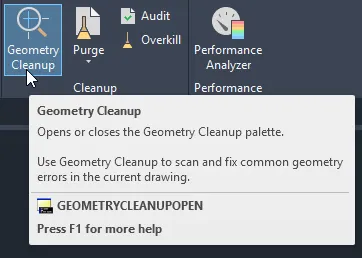
Geometry Cleanup scans drawings to fix common geometry errors. Geometry Cleanup scans drawings to find common geometry errors including gaps, overshoots, undershoots, and misaligned angles. It highlights errors directly in the drawing window with visual markers. Additionally, Geometry Cleanup offers several options for each error, allowing you to choose the best fix. You can also choose to ignore suggestions and keep the geometry as designed when needed. Geometry Cleanup is fast, visual, and precise. To use Geometry Cleanup, start by opening the palette. You can do this by typing GEOMETRYCLEANUPOPEN at the Command prompt, or from the ribbon, click Manage tab > Cleanup panel > Geometry Cleanup.
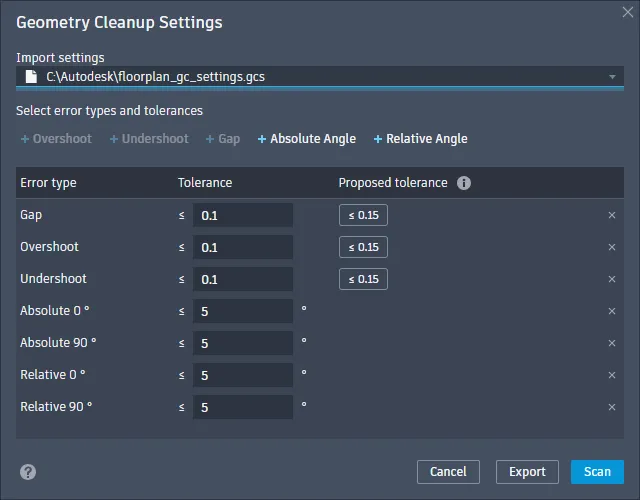
Next, select the objects you want to scan. Customize the settings by selecting the error types and setting the tolerances from the Geometry Cleanup Settings dialog box. You can also export tolerance settings and import template files for consistency across drawing or project types.
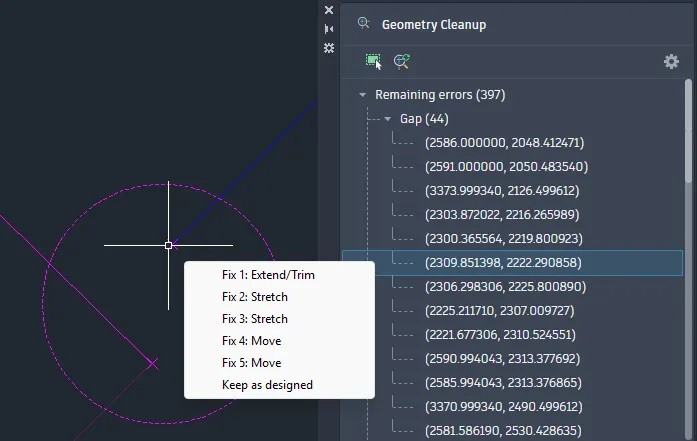
Finally, review and fix the found errors by clicking through them. Hovering over the visual marker will display fix options, and hovering over a fix option will allow you to preview the fix in real time on the canvas. Click on a fix option to apply it to the drawing. Use "Keep as designed" for intentional cases.
Subtle geometry errors can disrupt your design workflow and impact your productivity. Improving drawing accuracy is one of the key benefits of this tool. It saves time by streamlining the cleanup process while giving you control over what gets fixed.
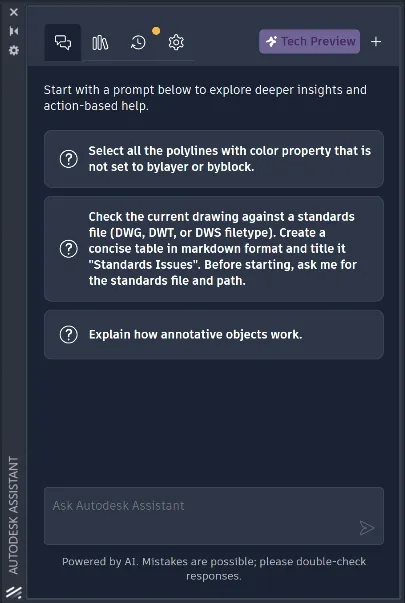
Autodesk Assistant (What's New in 2027)
Autodesk Assistant now offers AI-enhanced chat and prompt-driven workflows. Autodesk Assistant includes the following enhancements:
- Ability to check standards of the current drawing against a standards file
- Selection based on natural language prompt
- Ability to query drawing for information, such as layers list, block usage, etc.
- Prompt library and chat history
Note: These newest Autodesk Assistant enhancements are currently in Tech Preview and will continue to improve over time. Currently, its results may not be accurate.
Forma Data Management Essentials (What's New in 2027)
Forma Data Management Essentials streamlines collaborating with others on your projects. Forma Data Management (formerly Autodesk Docs) helps you organize project files and folders for every stage of your work. Use it to share drawing files, publish sheets, review designs, create transmittals, and track issues. To use Forma Data Management with AutoCAD, make sure to install the latest version of Desktop Connector. To do this, see Install Desktop Connector. This release includes improvements that make it easier than ever to get started with Forma Data Management:
- Forma Data Management Essentials
- Ability to view unsynced projects
- Learning content panel
- Enhanced AutoCAD features in Forma Data Management
Forma Data Management Essentials
AutoCAD and Civil 3D subscriptions now include Forma Data Management Essentials. It provides a central source for project information, helping your team stay connected.
Key features are:
- Online drawing file collaboration
- Permission-controlled access
- File versioning
- File sharing
- File review tools
View unsynced projects
You can now see all projects of which you are a member, including those not yet synced. To access files from an unsynced project, use Desktop Connector to sync them to your computer.
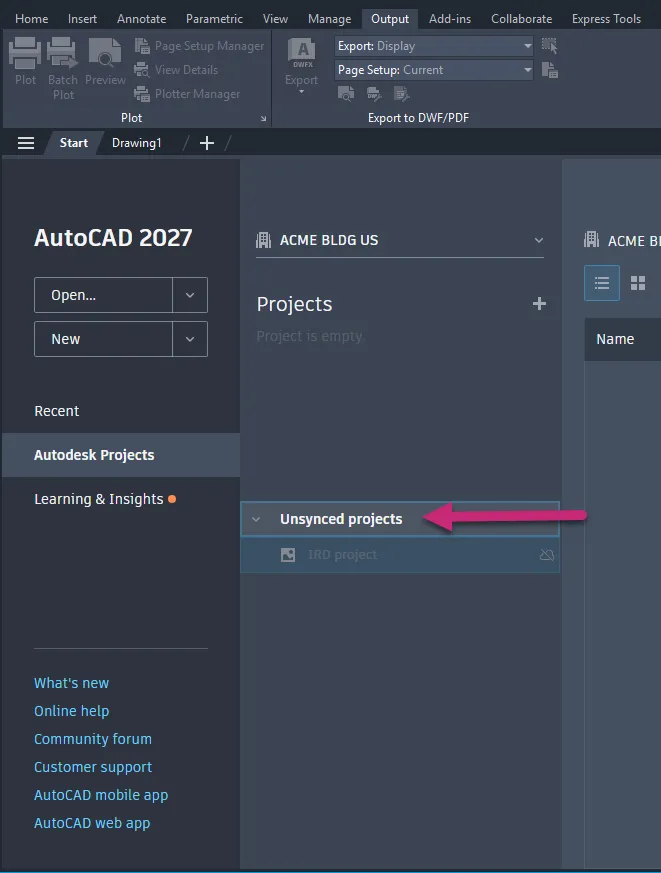
Learning content panel
In the Autodesk Projects tab, you'll find a panel with learning resources for Forma Data Management. It includes details about AutoCAD features now enhanced for working with drawings stored in Forma Data Management.
Connected References (What's New in 2027)
Connected References improves the workflow for updating the paths of missing external drawing references (xrefs). When working with drawings that contain references, the new Missing toggle allows you to switch to the Missing References view in the File References pane. This view exclusively shows missing external drawing reference (xref) files.
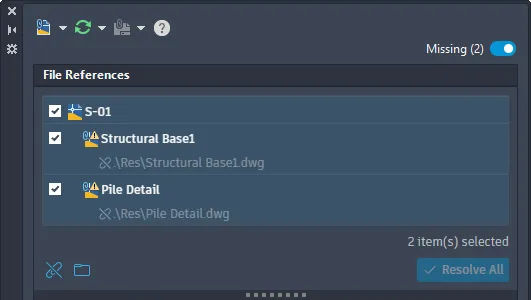
From the Missing References view, you can perform the following tasks on selected missing references:
- Detach references that are no longer needed
- Update the paths of references by browsing and specifying a new path
- Resolve the paths of references based on suggested paths (applies to drawings opened from an Autodesk project only)
Suggested Path for References
Normally, when a referenced file is renamed or moved, any drawing that depends on it can no longer locate it because its path has changed. As a result, you must update the path for each missing reference to load it properly into AutoCAD. With Connected References and referenced drawing (xref) files stored on Forma Data Management, the External References palette automatically attempts to locate missing reference files that have been renamed or moved. When a missing reference file is found, a suggested path is displayed, which you can accept to avoid manually updating each missing reference.
Changed Commands
EXTERNALREFERENCES - Opens the External References palette.
Connected Support Files: Tool Palettes (What's New in 2027)
Tool palette and authoring palette files can be shared with others working on the same Autodesk project stored on Forma Data Management. When configuring an Autodesk project on Forma Data Management, you can specify the locations for the project's tool palette and authoring palette files. For more information on setting up an Autodesk project for use with Connected Support Files, see To Set Up an Autodesk Project to Use Connected Support Files.
Note: Connected Support Files are now available in Forma Data Management and ACC Library.
If you are new to tool palettes and authoring palettes, the following provides a brief description of each:
- Tool palettes: Provide access to project-related blocks, hatch patterns, custom commands, and many other tools that help enforce CAD standards. When loaded, these palettes appear on the Tool Palettes window.
- Authoring palettes: Provide tools for creating and modifying dynamic blocks. When loaded, these palettes appear on the Block Authoring Palettes window within the Block Editor.
Configure Tool Palettes and Authoring Palettes for an Autodesk Project
After Connected Support Files have been set up for an Autodesk project, follow these steps to configure tool palettes and authoring palettes for the project:
Important: Only project members with Project Administrator access can configure Connected Support Files.
1. Upload your project-related tool palette (ATC) files to the Autodesk project.
2. For information on uploading files to an Autodesk project, see the Autodesk Desktop Connector help documentation.
3. In AutoCAD, open a drawing from the Autodesk project of which you want to configure tool palettes and authoring palettes.
4. In the drawing area, right-click and choose Options.
5. In the Options dialog box, click the Files tab and expand the Project Settings node.
6. Expand Tool Palettes File Locations and then click Add a Location under the node.
7. In the Browse for Folder dialog box, browse to and select the folder containing the uploaded tool palette files, and then click Open.
8. If you uploaded authoring palettes, repeat steps 5 and 6 for the Authoring Palette File Locations setting.
9. Click OK to save the changes.
Close
Display and Use Tool Palettes from an Autodesk Project
A special tool palette named Current Project is available on the Tool Palettes window and the Customize dialog box. This palette represents the tool palettes loaded from an Autodesk project on Forma Data Management when the project is configured to use Connected Support Files. Use this palette to access project-related tools or to add project-related tool palettes to a tool palette group.
Note: Tool palettes loaded from an Autodesk project are available only when a drawing from that project is open.
Changed Commands
BAUTHORPALETTE - Opens the Block Authoring Palettes window in the Block Editor.
CUSTOMIZE - Customizes tool palettes and tool palette groups.
OPTIONS - Customizes the program settings.
TOOLPALETTES - Opens the Tool Palettes window.
Connected Support Files: Partial Customization (CUIx) Files (What's New in 2027)
Custom user interface (UI) elements can be shared with others and loaded into the AutoCAD desktop app when working on a drawing opened from an Autodesk project on Forma Data Management. When configuring an Autodesk project on Forma Data Management, you can specify which partial customization (CUIx) files that contain custom tools to be automatically loaded when a drawing from that project is opened. As you switch between drawings, any configured CUIx files for an Autodesk project are automatically loaded when their associated drawing is current, and unloaded when a different drawing not associated with that Autodesk project becomes current. For more information on setting up an Autodesk project for use with Connected Support Files, see To Set Up an Autodesk Project to Use Connected Support Files.
Note: Connected Support Files are now available in Forma Data Management and ACC Library.
If you are new to partial customization (CUIx) files, the following resources provide helpful introductions:
- Customization (CUIx) Files
- Customize User Interface (CUI) Editor
- Customizing Ribbon Tabs
- Customizing Ribbon Panels
Creating a Partial CUIx File
Customization (CUIx) files store the definitions of custom command macros and user interface (UI) elements. These UI elements can include ribbon tabs, ribbon panels, toolbars, and more. Before you create custom command macros or UI elements, you must first create a CUIx file. Follow these steps to create a partial CUIx file that can be loaded with other CUIx files:
- Click Manage tab Customization panel User Interface.
- In the Customize User Interface (CUI) Editor, click the Transfer tab.
- In the right pane, click Create a New Customization File.
- In the Save As dialog box, browse to the location where you want to save the new CUIx file.
- In the File Name text box, enter a File Name and click Save.
After creating the CUIx file, you must load it into the Customize User Interface (CUI) Editor to define the custom command macros and UI elements you want to make available when a drawing file from an Autodesk project is opened.
Loading and Editing a Partial CUIx File
Follow these steps to load and edit a partial CUIx file in the CUI Editor:
- In the Customize User Interface (CUI) Editor, click the Customize tab.
- In the Customizations In pane, click Load Partial Customization File.
- In the Open dialog box, browse to and select the CUIx file to load and click Open.
- In the Customizations In pane, click the Loaded CUI file drop-down list and select All Customization Files.
- Scroll down and expand the Partial Customization Files node.
- Expand the node for the CUIx file that you loaded in Step 3.
- Create new command macros in the Command List pane and add new UI elements that reference your custom command macros under the appropriate nodes.
- For information, see About Command Customization and About User Interface Elements.
- Click Apply to save the changes.
- After adding the new UI elements and saving the changes, right-click the CUIx file under Partial Customization Files and choose Unload.
- Click OK to close the CUI Editor.
Adding a Partial Customization (CUIx) File to an Autodesk Project's Settings
After setting up Connected Support Files for an Autodesk project and creating a CUIx file, follow these steps to configure your partial customization (CUIx) files for a project:
Important: Only project members with Project Administrator access can configure Connected Support Files.
- Upload your project-related partial customization (CUIx) files to the Autodesk project.
- In AutoCAD, open a drawing from the Autodesk project of which you want to configure tool palettes and authoring palettes.
- In the drawing area, right-click and choose Options.
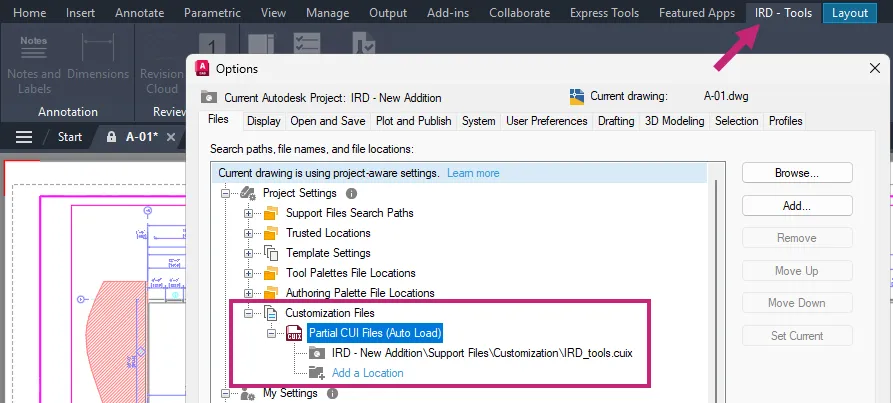
- In the Options dialog box, click the Files tab and expand the Project Settings node.
- Expand Customization Files Partial CUI Files (Auto Load) and then click Add a Location under the node.
- In the Browse for Folder dialog box, browse to and select the CUIx file you want to load when a drawing from the Autodesk project is opened and set current. Then click Open.
- Note: When selecting a CUIx file to load with the Autodesk project, make sure to not select the product's main customization file.
- If you uploaded multiple CUIx files, repeat steps 5 and 6 for each file.
- Click OK to save the changes.
Changed Commands
CUI - Manages the customized user interface elements in the product.
OPTIONS - Customizes the program settings.
Quality improvements
Cable Conductor List:
- The cable conductor list now supports lowercase characters.
- The cable conductor list correctly loads for child cable markers located on a different sheet from the parent, even when the TAG contains lowercase letters.
Catalogs:
- Spreadsheet export and import now handle multiple catalog information for panel terminals as expected.
- The COUNT field across multiple catalogs for NO/NC contacts is now evaluated before triggering the 'Too many contact references' alert.
Reports:User posts now process the data and display according to the SET files as expected.
Panels:Multi-assembly footprint insertion using the panel schematic list explodes all assemblies correctly.
Wire Number:
- The wire number format now supports lowercase characters.
- Improved wire numbering accuracy and consistency for circuits with jumpered terminals during drawing-wide and project-wide updates.
Terminal Strip Editor:Default values for custom attributes are now correctly imported on Terminal footprints inserted through the Terminal Strip Editor.
PDF Description:All letters are Descriptionted to correct thickness when the text style font is set to ROMANS.SHX.
Additional enhancements and changes
Projects and Reports:Improvements were made to reduce the amount of time it takes to open/rebuild projects and generate reports.
Layout Tab Switching Performance:Improvements were made to reduce the amount of time it takes to switch layout tabs.
3D Graphics System Enhancements:The 3D graphics system (GSF), controlled by the FASTSHADEDMODE system variable, now provides a more stable and efficient experience. These updates improve visual fidelity by better supporting large coordinates, occluded edges, materials, lights, textures, shadows, sky, and backgrounds. Additionally, the Realistic (Fast) visual style is now on by default.
Removal of Support for AutoCAD Web & Mobile:The Open From Web & Mobile (OPENFROMWEBMOBILE) and Save To Web & Mobile (SAVETOWEBMOBILE) features have been removed from this release. If you previously saved your drawing files to AutoCAD Web & Mobile, it's recommended to utilize Forma Data Management to store and access drawing files anywhere.
Removal of Shared Views:The Shared Views feature has been removed from this release. If you previously used Shared Views, it's recommended to utilize Forma Data Management to store and share drawing files with others.
Push to Forma Data Management Replaces Push to Autodesk Docs:The Push to Autodesk Docs feature has been updated to Push to Forma Data Management. New commands and system variables were introduced to display and close the Push to Forma Data Management palette.
Removal of Support for the MrSID Image Format:Image files saved in the MrSid format can no longer be attached to a drawing file. MrSID images will need to be saved to a supported file format and reattached.
Removal of Support to Create a PostScript File:The PSOUT command has been removed in this release and the EXPORT command no longer supports the ability to export to the format. If you need to create a PostScript file from a drawing, configure a PC3 file according to the output needed.
AutoCAD Electricalsoftware contains all the functionality of AutoCAD, plus a comprehensive set of tools for automating control engineering tasks, such as building circuits, numbering wires, and creating bills of material. It includes real-time error checking, and enables electrical and mechanical teams to collaborate on digital prototypes built with Autodesk Inventor software. It offers control engineers a competitive edge by helping save hours of effort, so they can spend more time innovating.
AutoCAD Electrical Toolset
We focus on building intelligent ladder diagrams and panel layouts and demonstrate how to leverage this intelligence. This webinar provides an overview of AutoCAD Electrical (ACADE) utilities designed to allow the end-user to quickly build and manage an electrical controls drawing set.
Autodeskhelps people imagine, design and create a better world. Everyone-from design professionals, engineers and architects to digital artists, students and hobbyists-uses Autodesk software to unlock their creativity and solve important challenges.
Owner:Autodesk Inc.
Product Name:AutoCAD Electrical Toolset
Version:2027.0 with LPs & Offline Help
Supported Architectures:x64
Website Home Page :
www.autodesk.com
Languages Supported:multilanguage
System Requirements:Windows *
Size:9.6 Gb

Buy Premium From My Links To Get Resumable Support,Max Speed & Support Me
KatFile
p2sgg.Autodesk-AutoCAD-Electrical-2027-with-LPs-Offline-Helps.rar.html
Rapidgator-->Click Link PeepLink Below Here Contains Rapidgator
AutodeskAutoCADElectrical2027withLPsOfflineHelps.html
https://peeplink.in/b02bfe8ffaba
DDownload
p2sgg.Autodesk-AutoCAD-Electrical-2027-with-LPs-Offline-Helps.rar
FreeDL
p2sgg.Autodesk-AutoCAD-Electrical-2027-with-LPs-Offline-Helps.rar
Links are Interchangeable - No Password - Single Extraction
⚠️ Dead Link ?
You may submit a re-upload request using the search feature.
All requests are reviewed in accordance with our Content Policy.
Discovering free software download can be a game-changer for users looking to enhance their digital experience without breaking the bank. These platforms offer a vast array of software free download options, covering everything from productivity tools to entertainment applications. The beauty of these sites is not just the price (or lack thereof) but also the variety and accessibility they provide, ensuring that there's something for every type of user.
Comments (0)
Users of Guests are not allowed to comment this publication.